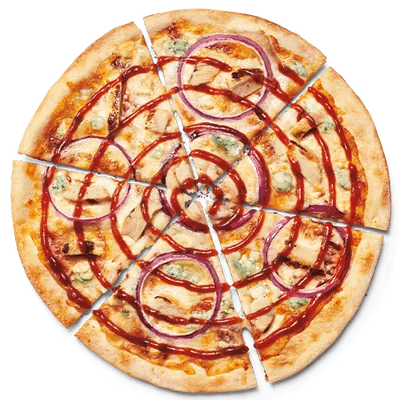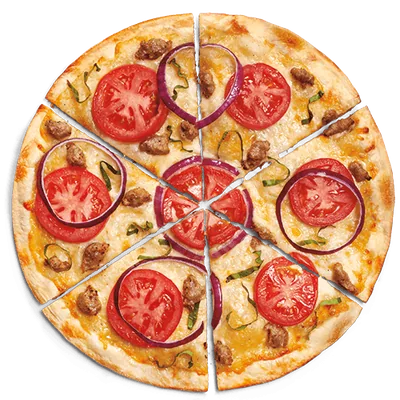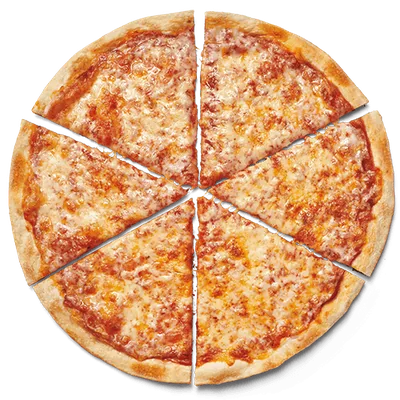
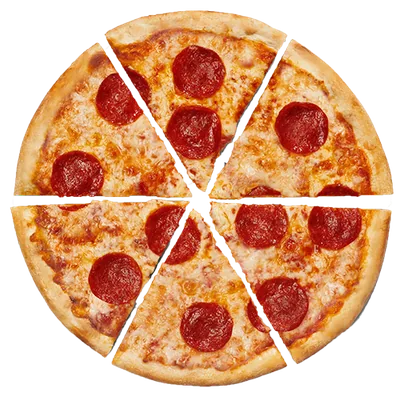
The MOD Pizza Calorie Calculator is designed for a specific job: combine exact, complete nutrition rows into a visible meal total. It is most useful when you already have a few pizzas, salads, or sides in mind and want to compare the published numbers without juggling several browser tabs or adding each field by hand.
This guide walks through the complete workflow, from finding a product to clearing the result for a second comparison. The local dataset comes from MOD Pizza official nutrition information captured on 2026-07-14. That date matters. The calculator organizes a dated source; it does not promise that recipes, portions, preparation, ingredients, availability, or restaurant conditions have stayed unchanged.
What the MOD Pizza Calorie Calculator actually calculates
The calculator currently presents 14 products with 44 exact variants across 3 calculator categories. A “variant” is not a rough multiplier. It is a distinct source row such as Mini, MOD, Mega Dough, a particular salad size, or a published Cheesy Garlic Bread combination. Every included variant has calories plus the other 11 nutrition fields used by the tool.
That boundary is deliberate. The wider MOD Pizza menu guide includes build-your-own ingredients, beverages, desserts, and menu choices that may have only a calorie label or range. The complete nutrition reference contains many more searchable rows. A product appears in calculator totals only when the captured data supplies a complete, identifiable row rather than an incomplete label that would force the tool to treat unknown values as zero.
Use the calculator for exact rows that can be added consistently. Use the Menu and Nutrition pages to research choices that do not meet that complete-row requirement.
How to build a meal total step by step
- Open the working calculator. Go to the calculator menu. The interactive product list appears before the supporting guide content, so you can start building immediately.
- Search for a product name. Type a name such as Caspian, Calexico, Garden, Caesar, or Cheesy Garlic Bread. Search narrows the visible cards; it does not change any nutrition value or remove items already selected.
- Choose the exact size or recipe row. When a card has several variants, use its selector before pressing Add. Mini, MOD, and Mega Dough are separate rows. Salad sizes, dressing combinations, and bread sauce options can also be separate. Read the full label rather than relying on the product name alone.
- Add one portion. The Add button changes into quantity controls. The selected-nutrition panel records the product, exact variant, quantity, and line calories so you can see which row was included.
- Adjust the quantity. Use plus or minus on the product card or inside the selected summary. Both controls update the same selected item. This is useful for two identical portions or for removing an accidental duplicate without restarting the entire order.
- Add the rest of the order. Search for another complete product or clear the search to browse every calculator category. A meal total becomes more useful when it includes the sides and extra portions that are genuinely part of the comparison.
- Review and reset. Read the total panel, then use Clear selections when you want a clean second scenario. Clearing removes selected quantities but leaves the source dataset available for the next build.
Why the exact size selector matters
A familiar menu name can hide a large serving difference. Mini, MOD, and Mega Dough are not simply three display labels attached to one number. The source provides separate rows, and the nutrition profile can change across calories, carbohydrates, sodium, fat, and protein at the same time. Selecting a Mini and mentally doubling it is not the same as choosing the published MOD row. Dough format and the complete source serving are part of the record.
The same principle applies outside signature pizza. A salad may have Mini/Side, MOD, or Mega rows. A recipe may be listed with a particular dressing, while a dressing can also appear as its own component in the full nutrition reference. Cheesy Garlic Bread can have published sauce combinations. The calculator displays the exact available option so the total stays attached to a real row rather than an assumed portion.
A reliable comparison changes one decision at a time
When comparing sizes, keep the pizza name the same and switch only the size. When comparing two recipes, hold the size steady when the source allows it. When testing whether a side changes the order, build the main item first, note the result, then add the side. This method makes the reason for a different total easier to understand than changing recipe, size, quantity, and add-ons simultaneously.
How to read the selected nutrition panel
The largest number is the combined calorie total, but it is not the only output. The panel also adds calories from fat, total fat, saturated fat, trans fat, cholesterol, sodium, carbohydrates, dietary fiber, sugars, and protein. Each value is multiplied by the selected quantity and then combined across the visible selected rows.
Read the itemized list before relying on the total. Confirm that the product, option, and quantity match what you meant to build. If a result looks surprising, the line list often reveals a second portion or a different size. Use the row-level minus and remove actions to correct it, then watch the total and portion count update together.
Nutrition fields describe the listed source serving; they do not decide whether a meal meets an individual medical or dietary need. Calories also do not tell you whether an ingredient or allergen is present. If those questions matter, move from the total to the source-specific tools rather than drawing a conclusion from one number.
Why arbitrary build-your-own pizzas stay outside the total
MOD Pizza offers many crusts, sauces, cheeses, meats, vegetables, finishing sauces, and other components. It may seem natural to add every published component row into a custom pizza. The problem is that an exact restaurant build depends on the portion actually used, the recipe, preparation, substitutions, and whether every component has a complete row for the same serving context.
The site therefore separates research from calculation. The Menu page maps the captured build-your-own choices. The Nutrition page lets you search complete component rows and compare published fields. The calculator does not claim that adding an arbitrary list of those components recreates the nutrition of the pizza a restaurant will prepare. That limitation prevents a precise-looking total from being built on uncertain portions.
Use the calculator, menu, nutrition, and allergen pages together
Start with the calculator for complete meal rows
Use the MOD Pizza Calorie Calculator when you want to combine supported pizzas, salads, and sides. It is the fastest route to quantities and totals.
Use the menu guide for discovery
Open the menu guide to browse signature recipes, build-your-own groups, kids items, sides, desserts, and beverage groups. Calculator links appear only where a matching complete product is available.
Use the nutrition page for a detailed row lookup
Use the nutrition facts table when you need a specific crust, sauce, cheese, meat, vegetable, dressing, beverage, or dessert row. Confirm the item and serving label before comparing values.
Use the allergen page for published markers and warnings
Use the allergen information reference to inspect captured ingredient text and published contains or equipment markers. An unmarked cell means only that no marker appeared in that captured cell; it is not proof that an allergen is absent. MOD Pizza describes shared preparation conditions, so current restaurant verification remains essential.
A short checklist before you rely on a comparison
- Confirm the exact product and size shown in every selected line.
- Confirm that the quantity reflects the number of listed portions.
- Read calories with the other nutrition fields instead of treating the total as a complete decision.
- Keep menu-only or incomplete choices outside the calculator total.
- Clear the calculator before building a clean second scenario.
- Check the source date and verify current official nutrition, ingredients, allergens, availability, and preparation details when they matter.
The calculator is best treated as a transparent worksheet for captured MOD Pizza nutrition rows. It shows what it can add, keeps each selected serving visible, and leaves uncertain combinations outside the total. That makes the result easier to audit—and easier to verify against current official information before ordering.